
How to print best before dates and batch numbers on labels
Keep the date and the batch number in columns of your product list, with one row per batch, and let the label read them. The layout stays the same for every batch, so a new batch means new cells, not a new design. This guide covers best before and use by, the date order the EU asks for, batch numbers, dates in GS1 barcodes, and the steps in Cloudlabels.
Written by Michael, who builds Cloudlabels · Last updated
What you need
- A spreadsheet with one row for each product and batch.
- The shelf life of each product. You set it from what you know about the product and, where needed, from tests.
- Your batch or lot numbers, in the form you already use.
- A GTIN for each product, if the date also goes into a GS1 barcode.
- A Cloudlabels account. The Free plan is enough to follow along with up to 20 items.
Step by step
Check which date the product needs
The producer decides which date goes on the pack and how long the shelf life is. The labelling rules then set the wording and the order of the date. Check the rules for your product and for every market you sell in before you design the label.
- EU: Regulation (EU) No 1169/2011 requires a “use by” date on foods that are highly perishable from a microbiological point of view and could soon become a danger to health. After that date the food is deemed unsafe. Most other prepacked foods carry a best before date.
- EU: the words are “Best before …” when the date includes the day and “Best before end …” when it does not. The date is written day, month, year, in that order and uncoded. Day and month are enough for food that keeps less than three months, month and year for up to 18 months, and the year alone beyond that. A use by date always gives the day and the month, followed by the storage conditions.
- EU: some foods need no date, among them fresh fruit and vegetables that are not peeled or cut, drinks with 10 % alcohol or more, and bakery goods that are normally eaten within 24 hours.
- Cosmetics in the EU: a product that keeps for 30 months or less shows the hourglass symbol or the words “best used before the end of”, then month and year or day, month and year. A product that keeps longer shows the open jar symbol with the period after opening instead.
- US: apart from infant formula, which must carry a “Use by” date, federal rules do not require a date on food. The USDA's Food Safety and Inspection Service recommends “Best if Used By” for a date that is about quality.
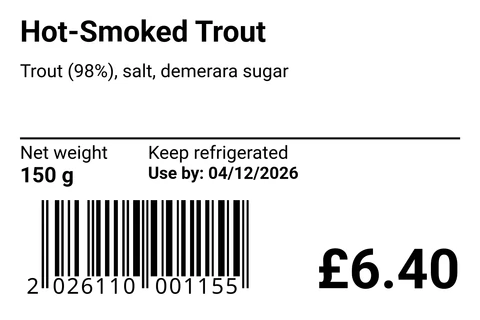
Deli Label · 60 × 40 mm · EAN-13
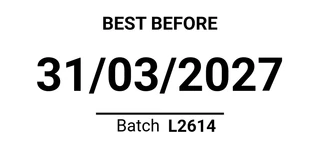
Best Before Sticker · 40 × 20 mm
Made in Cloudlabels with the templates named under each label. Not drawings. Keep the dates in the product list, one row per batch
A best before date belongs to a batch, not to a product. Give each batch its own row, with the product name, the batch number and the date in separate columns. The label reads the columns, so the next batch only needs new cells.
- Use plain column names such as Product, Batch and Best before. Add Production date if you print it or count the shelf life from it.
- Write dates as year, month, day, for example 2027-06-12. Cloudlabels can also read 12/06/2027 or 06/12/27, but you have to say which one the column uses. Year-month-day is the only one of these that a GS1 barcode field also reads.
- Cloudlabels has no date column type. A cell is text, and an Excel cell formatted as a date comes in the way Excel shows it. Format the column as text in Excel, or check the dates in “Items Table” after the import.
- Import the file from “Items Table” with “Import / Export”, then “Import Excel” or “Import CSV”. Columns the table does not have yet are added when “Add as new columns” is ticked.
Start from a food label template
Open “Labels” and go to the “Templates” tab. Under “Product labels”, the section “Food and drink” has labels with a best before field. “Best Before Sticker 40×20” shows the date large with the batch below it. “Food Product Label 100×70” and “Back Label 50×70” add ingredients, net weight and a barcode. Pick one and choose “Use template”.
- Before you choose it, the list “Your columns” shows which of the template's fields found a column in your table, such as Best before and Batch, and which say “No column yet”.
- A template field prints the cell exactly as it stands. If the cell says 2027-06-12, so does the label. The next step shows how to print it as 12/06/2027 instead.
- The food templates set ingredients, net weight and best before at 6.5 pt or more. A value too long for its box is made smaller to fit, so check the longest ones.
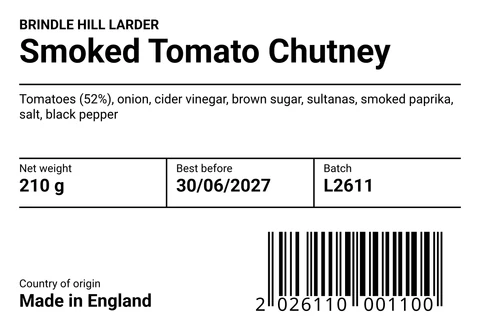
Food Product Label · 100 × 70 mm · EAN-13
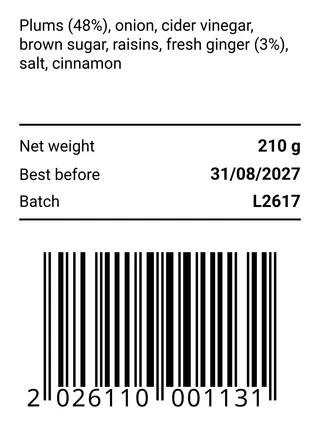
Back Label · 50 × 70 mm · EAN-13
Made in Cloudlabels with the templates named under each label. Not drawings. Print the date in the form your market reads
In the Design Center, open “Add” and choose “Date & expiry”. This adds a text field that writes a date in the format you pick. In the panel on the right, set “Type” to “Best before” or “Use by”. Set “Date from” to “Column”, pick your date column under “Column” and choose how it is written under “Column format”. Leave “Days to add” at 0. Under “Format”, choose how the date prints, for example DD/MM/YYYY, DD.MM.YYYY or D MMM YYYY. The line “Prints:” shows the result for the item in the preview.
- “Type” fills in the words before the date, such as “Best before: ”. For another language, write your own words under “Prefix”, for example “Best før: ”. “Type” then shows “Custom”.
- Check both “Column format” and “Format” before you go on. They can start on MM/DD/YY. “Column format” is not guessed: with DD/MM/YYYY chosen, 03/04/2027 is always 3 April.
- D MMM YYYY prints English month names, such as 12 Jun 2027. For other languages, use a format with numbers.
- There is no format with month and year only. For “Best before end” with a month and a year, write the whole line in a column, for example “Best before end: 06/2027”, and show it with a normal “Text” field.
- Delete the template's own best before field, so the date does not print twice.
Made in Cloudlabels with the template “Food Product Label 100×70 · EAN-13”, 100 × 70 mm. Not a drawing. Or let Cloudlabels count the date for you
A Date & expiry field can add days, weeks, months or years to a start date. With “Date from” set to “Column”, the start is a date in your table, such as the production date, and “Days to add” is the shelf life. A product made on 2026-12-14 with 180 days to add prints 12/06/2027. Cloudlabels does the counting. The shelf life is yours to set.
- “Today” starts from the day you export the labels. Choose “Fixed number” for the same shelf life on every row, or “Shelf life column” for a number per row, such as 180 in a column called Shelf life days. With “Column”, “Days to add” is one number for every row.
- “Fixed date” prints the same date, picked in the panel, on every label.
- “Today” needs your time zone. “Active time zone” shows it. If it says “Not set”, choose it there or under Settings, User defaults, Regional.
- Months are calendar months. 31 January plus one month is 28 February, or 29 in a leap year.
Made in Cloudlabels with the template “Best Before Sticker 40×20”, 40 × 20 mm each. Not drawings. 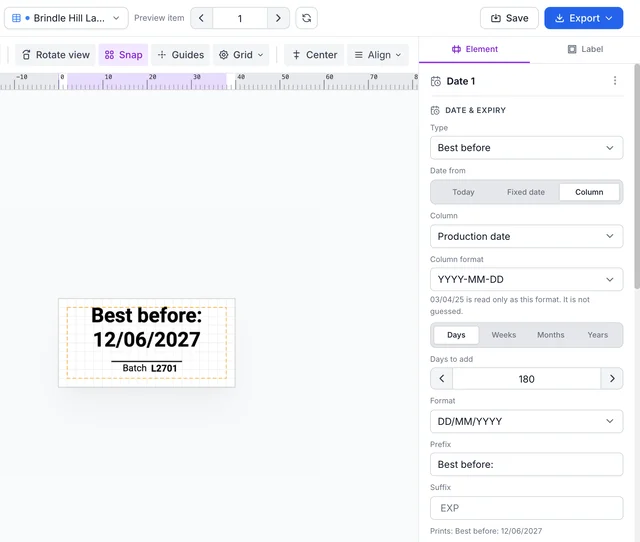
The app's Design Center counts the date: production date 2026-12-14 plus 180 days prints 12/06/2027. Put the batch number next to the date
Add a “Text” field, set “Content” to “Dynamic” and pick your Batch column under “Data field”. Place it beside or under the date, in the same size or close to it.
- EU: Directive 2011/91/EU requires a lot mark on food. The producer, manufacturer or packer decides what makes up a lot. The mark starts with the letter “L”, unless it is clearly distinct from the other information on the label.
- EU: the lot mark may be left out when the best before or use by date gives at least the day and the month, in that order and uncoded.
- Write the L in the cell, for example L2611, or add it as fixed text in front of the field.
- Cosmetics in the EU also need a batch number or another reference that identifies the product.
Add the date to a GS1-128 or a GS1 DataMatrix
Customers who scan cases or cartons may ask for the best before date and the batch in the barcode. GS1 gives each kind of data a number in brackets, called an Application Identifier: (15) best before, (17) expiry or use by, (11) production date and (10) batch or lot. A date in a GS1 code is always six digits, YYMMDD, so 12 June 2027 is 270612.
- GS1-128: add a “Barcode”, choose “GS1-128”, set “Content” to “Dynamic” and choose “Separate columns”. The barcode starts with “GTIN (01)” and “Batch / lot (10)”. Choose “Add field” and pick “Best before (15)”. The fields print in the order they are listed. Check that “GTIN (01)” reads your GTIN column. If it reads another column, the barcode shows “Invalid GS1-128 data”.
- For a date field, “Date in column” reads the same column as the printed date. A cell written 2027-06-12 goes into the barcode as 270612. “Calculated” counts from the print day instead, and the panel warns when the date text on the label uses a different rule.
- A GS1-128 field is left out on rows where its column is empty, so check that every row has a date.
- GS1 DataMatrix reads one column that holds the whole string, for example (01)19521234000287(15)270612(10)L2701. Build that string in your spreadsheet from the same cells as the printed date, so the two always match.
- GS1 expects a GTIN in the same code as these dates and the batch. The GS1 General Specifications allow 00 as the day when only the month is needed, read as the last day of that month, but not for regulated healthcare products.
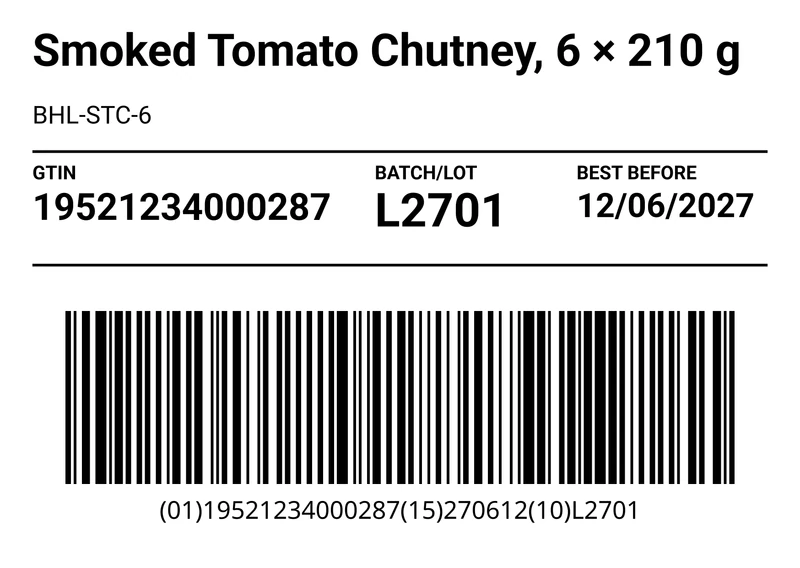
Carton Label A6 · 148 × 105 mm · GS1-128
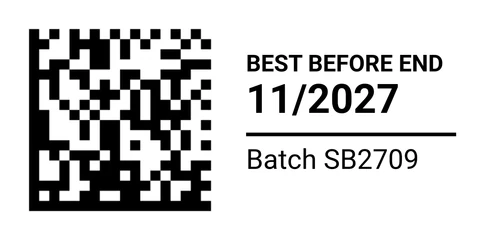
Asset Tag · 40 × 20 mm · GS1 DataMatrix
Made in Cloudlabels with the templates named under each label. Not drawings. 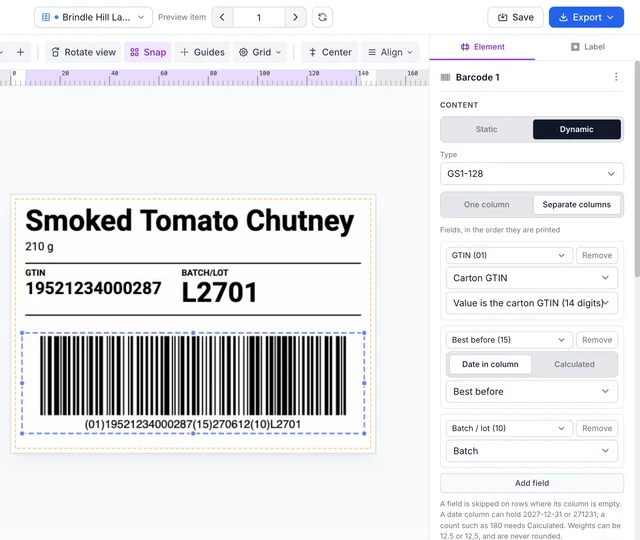
GS1-128 in the app's Design Center: GTIN, best before and batch each read their own column. Check every row, export, and reprint for the next batch
Step through the rows with the arrows beside “Preview item” at the top of the Design Center, or type an item number in the box, and read the date on each one. Then choose “Save”, go back to “Items Table”, tick the rows for this batch, choose your saved label and then “PDF”. In “Generate PDF”, choose “Export PDF”.
- If a Date & expiry field cannot read a cell, the export stops and names the item and the column, for example when the cell is empty or written in another format than the one you chose. Fix the cell and export again.
- A normal text field on an empty cell prints nothing, so a missing date is easy to miss there.
- For the next batch, add new rows with the new batch number and date, or change the cells on the old rows. New rows leave the old batch in the table as it was printed.
- Print one label at actual size and read the date. The EU sets a minimum x-height of 1.2 mm for mandatory food information, or 0.9 mm when the largest surface of the pack is under 80 cm².
- Pro and Business export at 600 DPI. The Free plan exports at 300 DPI with a small watermark.
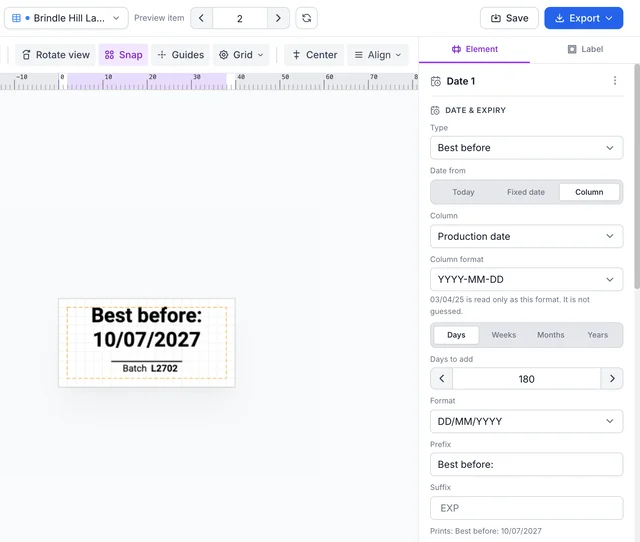
The next batch in the app's Design Center: one layout, a new row, a new date.


Mistakes that cost a reprint
- The date typed into the design.A date written as fixed text on the label prints on every batch until someone remembers to change it. Keep it in a column, or count it with a Date & expiry field.
- A date that can be read two ways.03/04/27 is 3 April in most of Europe and March 4 in the US. Write the column as 2027-04-03 and print the date in the order your market reads.
- A barcode date that differs from the printed date.When the text reads one column and the barcode another, or one counts from today and the other from a column, they drift apart. Point both at the same column. With “Calculated”, the GS1-128 panel warns when the date text uses a different rule. It does not warn when the two read different columns.
- No batch number.Without a lot mark, a problem with one batch is hard to trace to the packs it concerns. In the EU you may leave it out only when the date gives at least the day and the month.
- Counting from today on a reprint.A Date & expiry field set to “Today” gives a later date each day you print. Reprinting labels for stock that is already packed then moves its date forward. Take the date from a column for anything already made.
- A date too small to read.A long value in a small box is made smaller until it fits. Print one label at actual size and read the date before you print the run.